DaVinci Resolve quietly keeps track of every clip you've actually cut with. What it doesn't give you is a single place that says "here's everything you imported and never used." There's no "delete unused media" button.
The good news: you can build that view yourself in about a minute with a Smart Bin, and from there hand the list to Clip Sweeper to reclaim the drive space. Here's the whole workflow.
First, what "Usage" means
Every clip in your Media Pool has a Usage count — how many times it appears across your timelines. Usage = 1 or more means it's in the edit somewhere. Usage = 0 means you imported it but never cut it in: a take you passed on, a whole reel you scrubbed once, the B-roll that didn't make it.
To see the count, switch the Media Pool to list view, right-click any column header, and turn on Usage. Now you can eyeball it — but eyeballing 4,000 clips is no way to live. So let's make Resolve collect the zeros for us.
Build a Smart Bin for Usage = 0
Smart Bins are saved filters that stay live as you edit. One rule does the work; a second keeps the bin tidy:
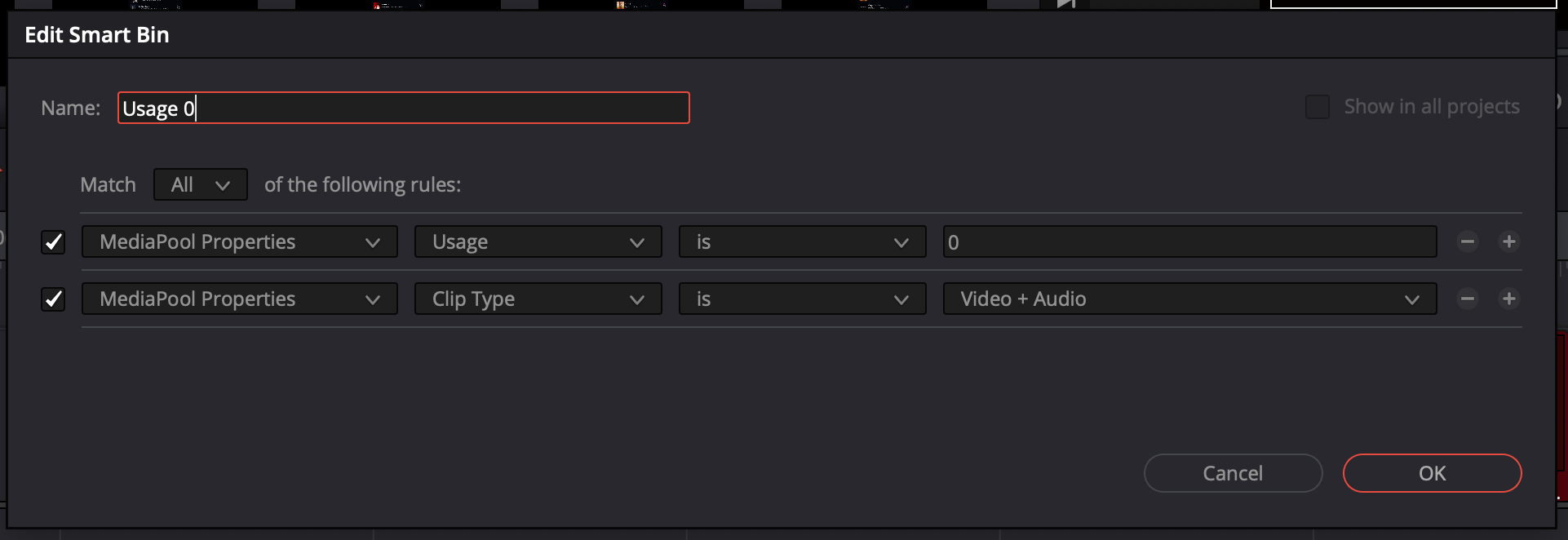
- In the Media Pool sidebar, find the Smart Bins section. Click the + next to it (or right-click and choose Add Smart Bin).
- Name it something obvious, like Usage 0.
- Set Match All, then add the rule that matters:
MediaPool Properties→Usage→is→0. - Optional but recommended: add a second rule —
MediaPool Properties→Clip Type→is→Video + Audio— to narrow the bin to real footage and skip stills, audio-only, and timeline items. Leave it off if you want to catch everything that's unused. - Click OK. The bin instantly fills with every clip that isn't on a single timeline — and keeps itself updated as the edit changes.
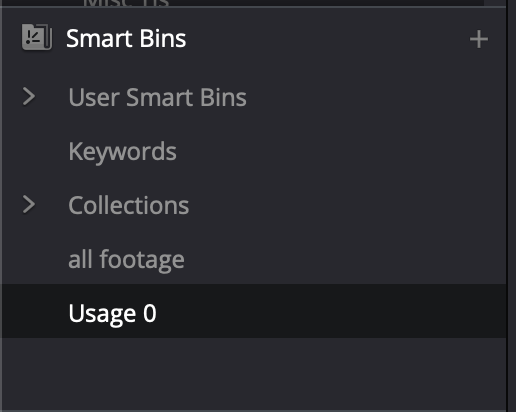
That's your unused list. It shows up right under Smart Bins in the sidebar, ready any time you want to see exactly what's riding along for free.
Usage only counts this project's timelines. A clip that's unused here might be the hero shot in another project that shares the same drive. That's exactly why Clip Sweeper asks you to confirm the import before anything is deletable, and labels these clips "DaVinci CSV" rather than "Unused" — Resolve flagged them, so the final call stays yours.
Export the list as a CSV
With the Usage 0 bin open, select every clip in it (Cmd + A), then choose File ▸ Export Metadata From ▸ Selected Media Pool Clips… and save it as a CSV. (Pick Media Pool… instead if you'd rather dump the whole pool and let Clip Sweeper sort it out.) Resolve writes one row per clip, and the two columns Clip Sweeper cares about are right there at the front: File Name and Clip Directory (the folder the media actually lives in). Save it anywhere you'll find it again.
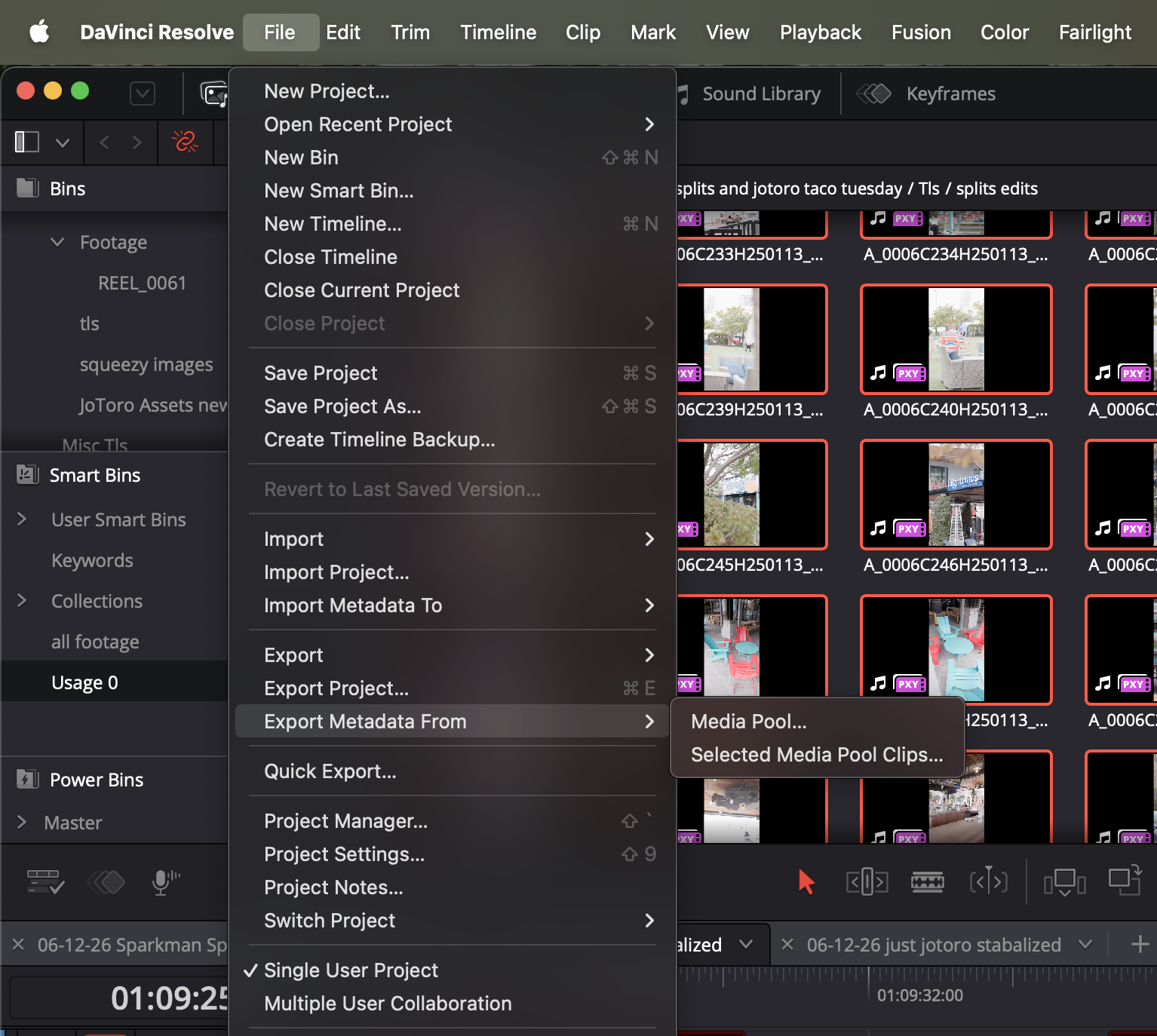
You don't need to trim the columns or clean anything up — Clip Sweeper locates File Name and Clip Directory by name, ignores the rest, and skips any stray timeline rows automatically.
Hand it to Clip Sweeper and reclaim the space
Open Clip Sweeper and choose File → Import DaVinci CSV, then pick the file you just saved. Confirm the prompt — it's making sure that export really is your unused list before it marks anything deletable.
From there it works just like a Premiere scan. Clip Sweeper finds the real files on disk — across mounted drives and your NAS — shows you their sizes and a scrubbable preview, and drops them into the same virtual recycle bin. Review what's there, then move the originals to Trash, relocate them to an archive folder, or delete. Nothing on your drives is touched until you say so, and any Protected Folder is left alone.
Resolve tells you what you used. Clip Sweeper turns that Usage = 0 bin into reclaimed terabytes — without you scrubbing 4,000 clips by hand. Not sure it's worth it yet? Estimate what that wasted space is costing you first.